Showing posts with label iphone. Show all posts
Showing posts with label iphone. Show all posts
Monday, January 22, 2018
Apple Iphone Theme v1 0 Apk
Apple Iphone Theme v1 0 Apk

Proudly presenting our new app in Google Play.
Users plss download this and give rating on Google Play. It will help us to improve more.
**Features [COMMON FOR ALL LAUNCHERS]:**
5 Major Launchers Support;
Android 2.2+ Support;
Original Apple Iphone Icons;
70+ Apps Icons as in this version plus all other apps with a common Iphone Icon background.
Supports LDPI, MDPI, HDPI n Tablets.
**Features [As per Launchers]:**
**Adw:**
Icons Pack;
Theme Skin;
Wallpapers.
**Apex:**
Icons Pack;
Font;
Theme UI;
Wallpapers[3 As In This Version].
**Holo/Holo HD/Nova:**
Icons Pack.
Requires Android:2.2 - 4.2 and up

[Armv6 & Armv7]
Playstore Link
APK File (mediafire)


Playstore Link
APK File (mediafire)
Get link for download

Sunday, January 14, 2018
Apple iPhone 6 Plus
Apple iPhone 6 Plus

Data: Edge, 3G, 4G, EVDO, GPRS, HSPA, HSUPA, LTE, 1xEVDO, WiFi
Design: Bar
Keyboard/Buttons: Touchscreen
Type: Smartphone
Talk Time: 24 hours (1440 minutes)
Touch Screen: Yes - capacitive
Camera Features: 1080p HD video capture, 1.2MP front-facing camera, Geo tagging, High Dynamic Range mode (HDR), Panorama, back-illuminated sensor (BSI), Autofocus, Touch to focus, Optical image stabilization, Face detection, Burst mode
Bluetooth: Yes
Operating System: Apple iOS
Wi-Fi: Yes
Get link for download
Wednesday, January 10, 2018
Apple iPhone 6
Apple iPhone 6

The Apple iPhone 6 became official on Tuesday September 9, 2014. The iPhone 6 brings a Retina HD 4.7" display, 50% faster than the original iPhone, 8MP camera, 1.2MP front-facing camera, True Tone flash, Focus Pixels, burst selfie mode, HD voice, NFC, mobile hotspot, fingerprint reader.
Data: Edge, 3G, 4G, EVDO, HSPA, HSUPA, LTE, 1xEVDO
Design: Bar
Keyboard/Buttons: Touchscreen
Type: Smartphone
Talk Time: 14 hours (840 minutes)
Touch Screen: Yes - capacitive
Camera Features: 1.2MP front-facing camera, 1080p HD video capture, Focus Pixels, burst selfie mode, Exposure compensation, digital zoom, Geo tagging, High Dynamic Range mode (HDR), Panorama, Back-illuminated sensor (BSI), Autofocus, Phase detection autofocus, Touch to focus, Digital image stabilization, face detection
Bluetooth: Yes, v4.0
Operating System: Apple iOS
Wi-Fi: Yes
Watch Apple iPhone 6 unboxing and first look here.
Get link for download
Saturday, October 7, 2017
Apple releases new iPhone 6s ads focusing on ‘Hey Siri’ and the camera
Apple releases new iPhone 6s ads focusing on ‘Hey Siri’ and the camera

If you are reading this then youve got an Android Smartphone/Tablet and probably trying to figure out a way to transfer files back and forth your PC and Android or you wanna access the files on your android through PC , right ?
If not , try this one - Dont Get Hacked Protect Your Personal Accounts With LogDog [Android]
Now lets get started with AirDroid , yeah thats the one .
AirDroid ,
Airdroid was developed by Sand Studio , its here to solve all your problems and make your data transfer work a piece of cake .Yep , AirDroid is an application to transfer files between your PC and Android without any data cables or without data usage.
Airdroid was developed by Sand Studio , its here to solve all your problems and make your data transfer work a piece of cake .Yep , AirDroid is an application to transfer files between your PC and Android without any data cables or without data usage.
The HotSpot Trick,
AirDroid extensively uses WiFi to establish a bridge between your PC and Android and then you can start transferring your files back and forth.
Note - AirDroid uses your WiFi connection not your mobile data .
Requirements :
> WiFi connection
> Android Smartphone/Tablet
> Android Smartphone/Tablet
Also Check Out - Get Rs100 QwikCliver Amazon Gift Card
Lets get connected ,
- Connect your Android to the WiFi with which your PC is connected.
- Secondly make sure you have airdroid application installed on your android , or download it from the PlayStore .
- Open AirDroid and register or skip that part , then note the web address , looks like this - " 192.168.4.4:8888 ".

- Enter the address in your PCs browser and hit enter
- Now a notification will popup on your Android , Accept the connection .

- Yeah , thats it now your Android is connected with your PC.
Transfer Files From PC To Android :
- Now that the connection is established you can transfer files from your PC to android by dragging the files into the box.

- Simply drop the files into the box and it will be copied to your Android.
- The files will be stored in a default location " AirDroid " folder in your Android .
Transfer Files From Android To PC :
- After the connection is established you can access the files on your Android by using the icons , click on file browser icon and you can browse the files on your Android.

- The best part is that you can also browse your SD card files .
- To copy files from your Android simply select the files and hit download button on the top of file browser and your files will be downloaded in zip file format.You can then extract the files.

Note - Transfer speeds depends upon your WiFi connection module.
> Mirror your Android screen on your PC ( Only For Rooted Devices )
> You can use your Androids camera as WebCam.
> Copy or Write to your Androids ClipBoard .
> Install APKs directly by drag and drop feature> Access to calls and texts .
> Attend the call and reply to message from your PC. Check out AirDroid Desktop here.

- Consider Liking Our Facebook Page -
> Attend the call and reply to message from your PC. Check out AirDroid Desktop here.
Pros :
- Supports Windows / MAC.
- Transfer files locally between PC and Android using WiFi without data usage( No carrier charges ).
- You can also transfer files to a remote PC or Android through internet connection.
- There is no file size limit or restrictions , you can transfer any type of file .
- Unlimited file transfer speeds , depends on your WiFi router module.
- Android WebCam / Access to Android ClipBoard
Cons :
- No option to select storage location while copying files from PC to Android.
- Android mirror feature requires ROOT permissions.
> Voila there you go <
> Made Simple <
Get link for download
Monday, August 7, 2017
Apple Iphone Theme v2 0 Apk
Apple Iphone Theme v2 0 Apk

**Features [COMMON FOR ALL LAUNCHERS]:**
5 Major Launchers Support;
Android 2.2+ Support;
Original Apple Iphone Icons;
100+ Apps Icons as in this version plus all other apps with a common Iphone Icon background.
Supports LDPI, MDPI, HDPI n Tablets.
5 Major Launchers Support;
Android 2.2+ Support;
Original Apple Iphone Icons;
100+ Apps Icons as in this version plus all other apps with a common Iphone Icon background.
Supports LDPI, MDPI, HDPI n Tablets.
**Features [As per Launchers]:**
**Adw:**
Icons Pack;
Theme Skin;
Wallpapers.
Icons Pack;
Theme Skin;
Wallpapers.
**Apex:**
Icons Pack;
Font;
Theme UI;
Wallpapers[3 As In This Version].
Icons Pack;
Font;
Theme UI;
Wallpapers[3 As In This Version].
**Holo/Holo HD/Nova:**
Icons Pack.
Icons Pack.
Whats in this version:
v2.0 Updated Release
*Total 100+ Icons
*Better Holo Launcher Support.
*Total 100+ Icons
*Better Holo Launcher Support.
More Apps Here
Requires Android:2.2-4.2 and up
Download Links
Requires Android:2.2-4.2 and up
Download Links
[Armv6 & Armv7]
Playstore Link
APK File (hotfile)
Mirror Link (zippyshare)
Playstore Link
APK File (hotfile)
Mirror Link (zippyshare)


Get link for download
Wednesday, March 15, 2017
Apple Iphone Theme v4 0 Apk Theme
Apple Iphone Theme v4 0 Apk Theme
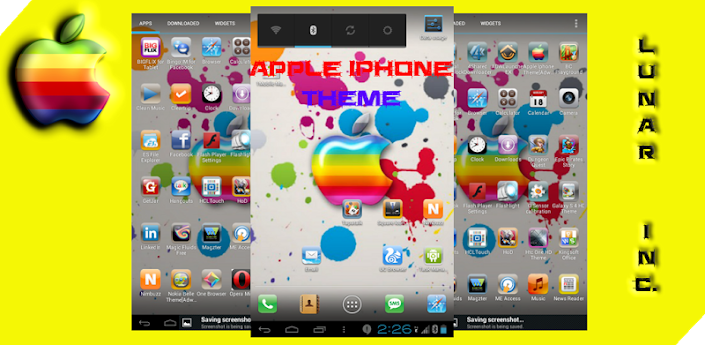
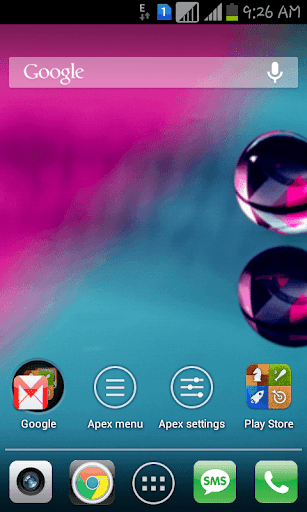
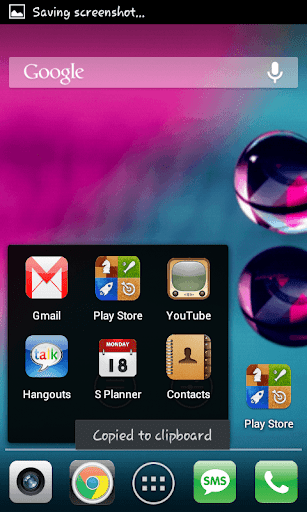
**Features [COMMON FOR ALL LAUNCHERS]:**
8 Major Launchers Support;
Android 2.2+ Support;
Original Apple Iphone Icons;
160+ Apps/Games Icons as in this version plus all other apps with a common Iphone Icon background.
Supports LDPI, MDPI, HDPI n Tablets.
**Features [As per Launchers]:**
**Adw/Adw.Ex:**
Icons Pack;
Theme Skin;
Wallpapers.
**Apex/Apex Pro:**
Icons Pack;
Font;
Theme UI;
Wallpapers[6 As In This Version].
**Holo/Holo HD/Holo Plus/Nova:**
Icons Pack.
** TO APPLY THE THEME **
Apex Launcher: Go to Apex settings > Theme settings
Holo Launcher: Go to Launcher Settings>Appearance Settings>Icon Pack>Select Theme
Nova Launcher: Go to Nova Settings > Look and feel > Icon Theme
ADW Launcher: On the home screen, press MENU > More > ADWSettings > Themes Preferences > Select Theme
8 Major Launchers Support;
Android 2.2+ Support;
Original Apple Iphone Icons;
160+ Apps/Games Icons as in this version plus all other apps with a common Iphone Icon background.
Supports LDPI, MDPI, HDPI n Tablets.
**Features [As per Launchers]:**
**Adw/Adw.Ex:**
Icons Pack;
Theme Skin;
Wallpapers.
**Apex/Apex Pro:**
Icons Pack;
Font;
Theme UI;
Wallpapers[6 As In This Version].
**Holo/Holo HD/Holo Plus/Nova:**
Icons Pack.
** TO APPLY THE THEME **
Apex Launcher: Go to Apex settings > Theme settings
Holo Launcher: Go to Launcher Settings>Appearance Settings>Icon Pack>Select Theme
Nova Launcher: Go to Nova Settings > Look and feel > Icon Theme
ADW Launcher: On the home screen, press MENU > More > ADWSettings > Themes Preferences > Select Theme
Requires Android:2.2-4.2 and up
Download Links
Download Links
Playstore Link
APK File (mediafire)
Mirror Link (datafilehost)
APK File (mediafire)
Mirror Link (datafilehost)
Get link for download
Friday, February 24, 2017
How to install iOS 9 beta on your iPhone iPad or iPod touch
How to install iOS 9 beta on your iPhone iPad or iPod touch

Apple unveiled iOS 9 during the WWDC 2015 Keynote address earlier today, which includes a number of new features and improvements.
A short while back, Apple also seeded the first beta version of iOS 9 to developers.
If you’re a member of the iOS Developer Program and want to install iOS 9 beta on your iPhone, iPad and iPod touch then check out the step-by-step instructions.
Some important points before we start:
- We’re assuming that you’re a member of Apple’s iOS Developer program. If not you can enroll for the program for $99 per year.
- Beta versions are usually buggy, so please proceed at your own risk.
- Please ensure that you’ve taken a backup of your iOS device to iCloud or iTunes before you upgrade to iOS 9 beta.
- Please note iOS 9 beta is only compatible with the following iOS devices:
- iPhone 6 Plus, iPhone 6, iPhone 5s, iPhone 5c, iPhone 5, iPhone 4S
- iPad Air 2, iPad mini 3, iPad Air, Retina iPad mini, iPad with Retina Display (iPad 4, iPad 3), iPad 2, iPad mini
- iPod touch (5th generation)
You can follow these step-by-step instructions to install iOS 9 beta on your iOS device:
Provisioning
This is where you assign devices for development and testing purpose:
- Login to Member Center on Apple’s Developer website.
- Click on the Certificates, Identifiers & Profiles.
- Next click on Devices in the left navigational panel under iOS Apps.
- Then click on the + button to add your iOS device.
- Here you need to enter the UDID of the iOS device, which is a 40 hex character string. You can find the UDID using either Xcode or iTunes:
- Xcode method – Connect your device to your Mac and open Xcode. Then in Xcode, navigate to the ‘Window’ drop down menu and select ‘Organizer’. You should now see your device’s UDID. Double click on it to highlight and press Command+C to copy the UDID to your Clipboard.
- iTunes method – Connect your iOS device to your Mac and launch iTunes. In iTunes, select your iOS device in the ‘Devices’ section and navigate to the Summary tab. Click on the Serial Number label, this will show the Identifier field and the 40 hex character UDID. Right click on the UDID and then click on Copy Identifier (UDID) to copy it to your clipboard.
- Go back to Member Center, now enter the name of the your iOS Device and paste the UDID that you have copied from the above step and click on the Continue button.
- You will be prompted to review the details. Click on the Register button, followed by Done to complete the registration process for your iOS device.
Download iOS Software
- Navigate back to the Member Center.
- Click on SDKs, followed by iOS 9.
- Then click on Download in the top right corner.
- Then select your device from the drop down.
- After it has been successfully downloaded, double-click on the zip file to extract the .ipsw file.
- Ensure you have the latest version of iTunes installed.
Install iOS 9 Beta
You can install iOS 9 Beta using Xcode or iTunes. It is a lot easier to install using iTunes and the preferred method for app testers, so I am mentioning the iTunes method here.
- Open iTunes.
- Connect your iOS device to your Mac and launch iTunes.
- In iTunes, select your iOS device from the top right corner and navigate to the Summary tab.
- Hold down on the Option key (or the Shift key in Windows) and click the Update iPhone… (iPad or iPod touch) button.
- Now select the .ipsw file from the extracted folder to install iOS 9 beta and click on theOpen button.
- iTunes may prompt you that it will update your device with iOS 9. Click Ok to continue.
- You will get a ‘Slide to upgrade’ slider after it reboots. Swipe on the slider to proceed.
- Your device will reboot again, and you’ll be greeted with the ‘Hello’ welcome screen. Swipe on the ‘Slide to setup’ slider and tap on Continue and follow the on-screen instructions to setup your device.
That’s it, you’re all set to start testing your apps on your iOS device running iOS 9 beta.
As always, let us know how it goes in the comments section.
Get link for download
Subscribe to:
Posts (Atom)